VPN for Windows
Protect every app on your Windows 10 or 11 PC, not just the browser. Install the Browsec app, pick a location and connect in one click.
The Windows app is included in Browsec Premium.
How to install Browsec VPN on Windows
Four steps from checkout to a protected PC:
-
01
Get Premium
The Windows app comes with Browsec Premium. Buy a plan first. The installer is free, and one plan covers up to 5 devices.
-
02
Download the installer
Get the .exe for Windows 10 or 11 (64-bit) from the cards above. If GitHub is blocked where you are, use Mirror 1 or Mirror 2.
-
03
Run the installer
Double-click the downloaded file and follow the setup wizard. It takes about a minute. If Windows asks whether to let the app make changes, click Yes.
-
04
Sign in and connect
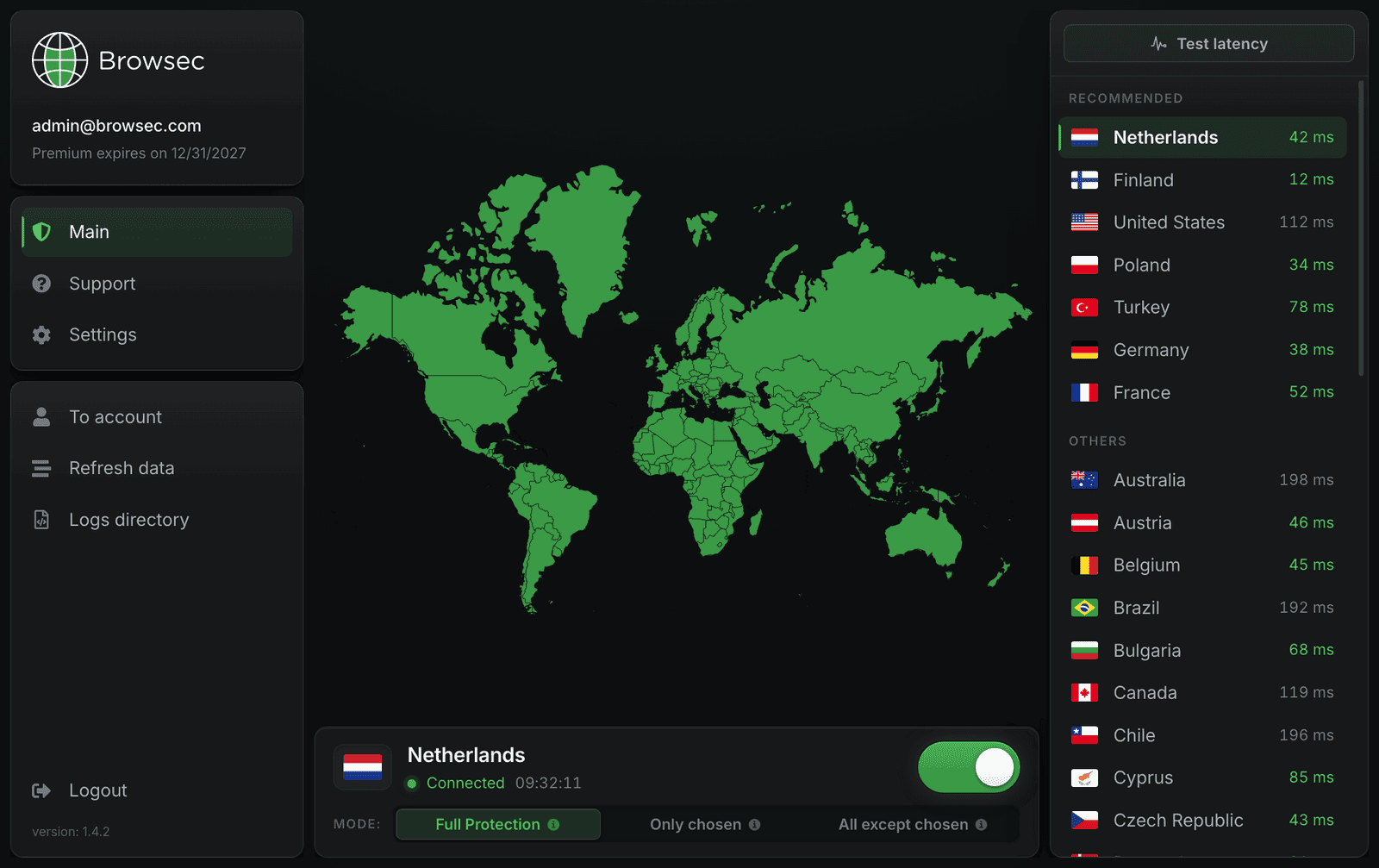
Open Browsec from the Start menu, log in with your Premium account, pick a location and click Connect.
Why use a VPN on your Windows PC
Every app, not just the browser
Your internet provider and anyone on the same network see only encrypted traffic. That covers Chrome and Edge, and also Steam, Discord, Telegram Desktop, Outlook and every other program on the PC.
Hide your real IP
Websites and online services see the IP address of a Browsec server, not yours. Streaming platforms, games and music services work as if you were in the country you picked.
You decide what goes through the VPN
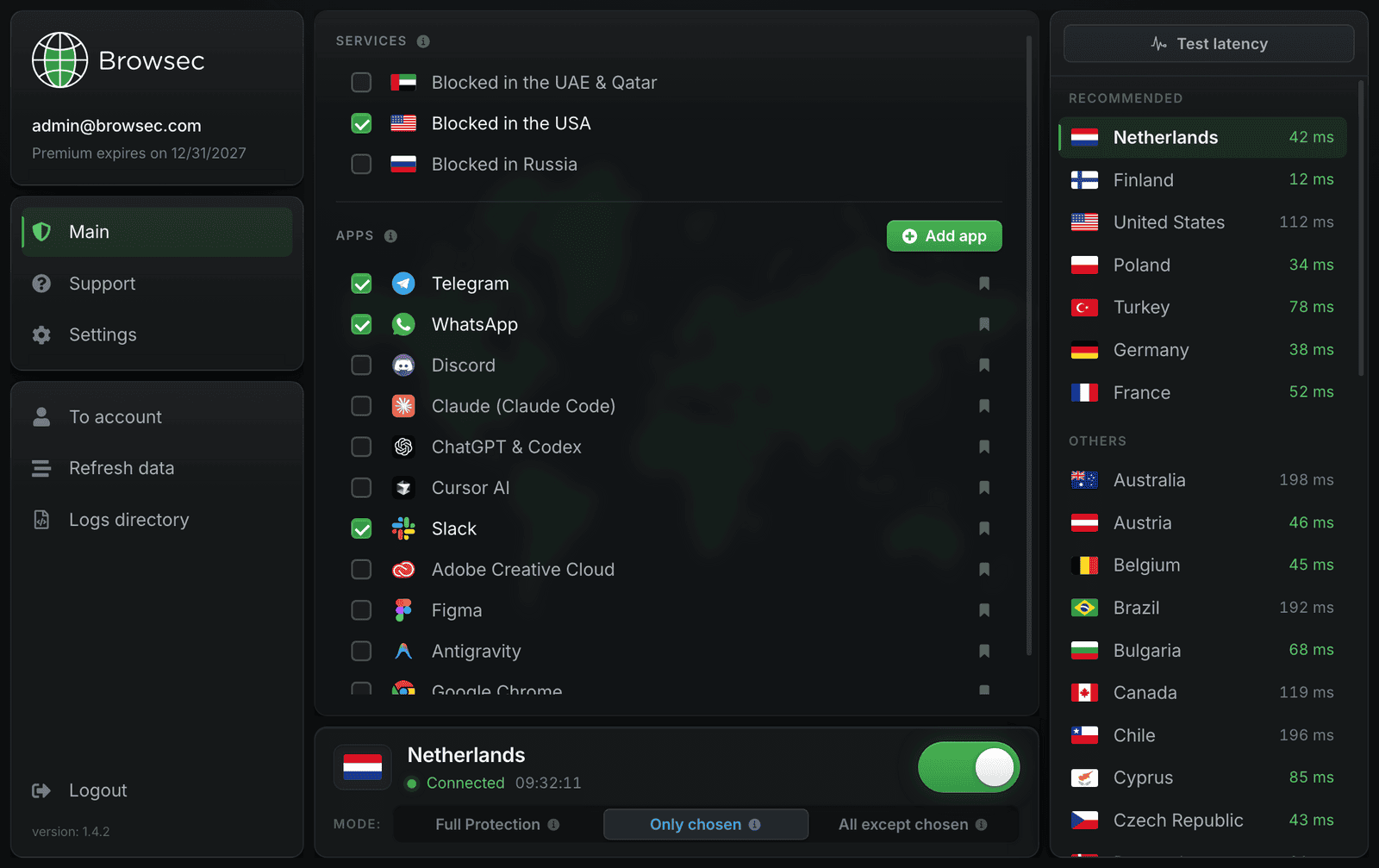
The location list shows live ping, so you can pick the fastest server. Smart Rules (split tunneling) let you choose which apps and sites use the VPN. For example, keep an online game on a direct connection while your browser stays protected.
Built for everyday Windows use
Safe on public Wi-Fi
Laptops spend a lot of time on café, hotel and airport networks. With the app on, the whole Windows connection is encrypted, so someone on the same hotspot can't read what you send.
Starts with Windows
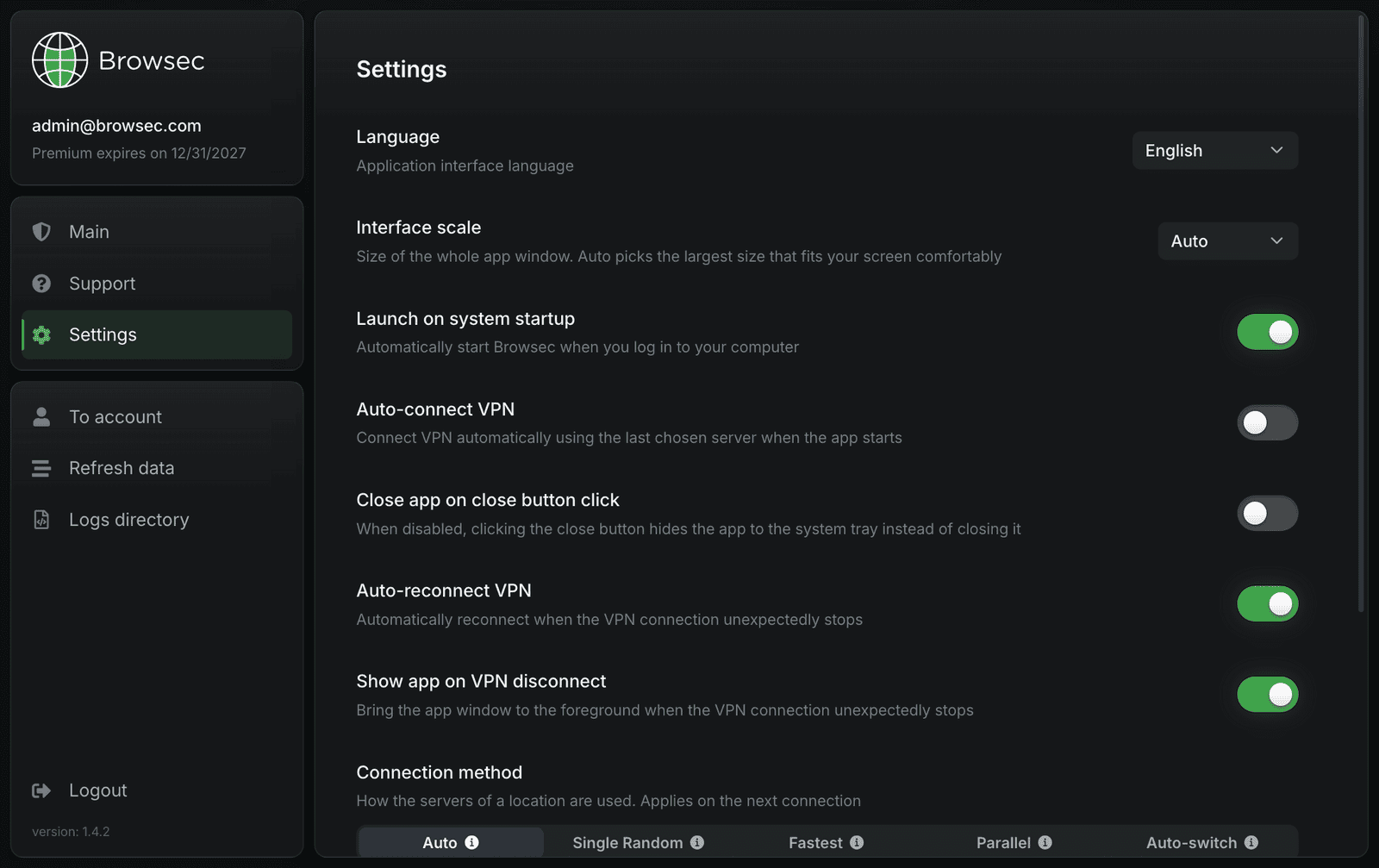
Turn on autostart and the app launches with Windows, connecting to your last server before you open a browser. If the connection drops, it reconnects on its own.
Fast Premium servers
Premium servers have fewer users than free ones, so video, downloads and calls stay smooth. For the best speed, pick a location close to you.
What you get with Browsec VPN for Windows
Worldwide connection
46 server locations across Europe, the Americas, Asia, Africa and Australia, including two in the US. Switch between them in one click.
Whole-PC protection
A browser extension protects one browser. The Windows app protects the whole PC: every browser, game launcher, messenger and background updater.
Lives in the system tray
Connect or disconnect with one click. The rest of the time the app sits in the tray and stays out of your way.
Three protection modes
Full Protection sends all traffic through the VPN. Only chosen protects just the apps and sites you tick, such as a messenger and a streaming site. All except chosen protects everything apart from what you exclude, such as your banking app.
What people say about Browsec
Muhammad Sajjad HussainReally find a wonderful VPN app, also be a premium user, find it most suitable and user friendly in all aspects as stated in its description. Thumbs up.
Stoyan9Tried many times in diff countries, never fails
SeregaI love it. This app is the best. I downloaded approximately 14 other similar apps and none of them worked the way they supposed to. This app works perfectly awesome
Q8DiverBrowsec is the best VPN app ever, excellent job developers 👍 keep going
Get started with Browsec VPN for Windows
7-day money-back guarantee